

Product Cutout
Clean object edge for ecommerce listing images.
Upload a product photo, portrait, or object shot and use a background remover workflow to create a clean transparent cutout. Start from the live examples, then replace them with your own image when you are ready.
1 credit per successful image
Result
Format
Sample resultReady for a clean cutoutClean object edge for ecommerce listing images.Background remover examples
These examples show the same source photo before and after background removal, using real outputs from the live workflow.
Clean object edge for ecommerce listing images.


Subject isolation for profile photos and thumbnails.
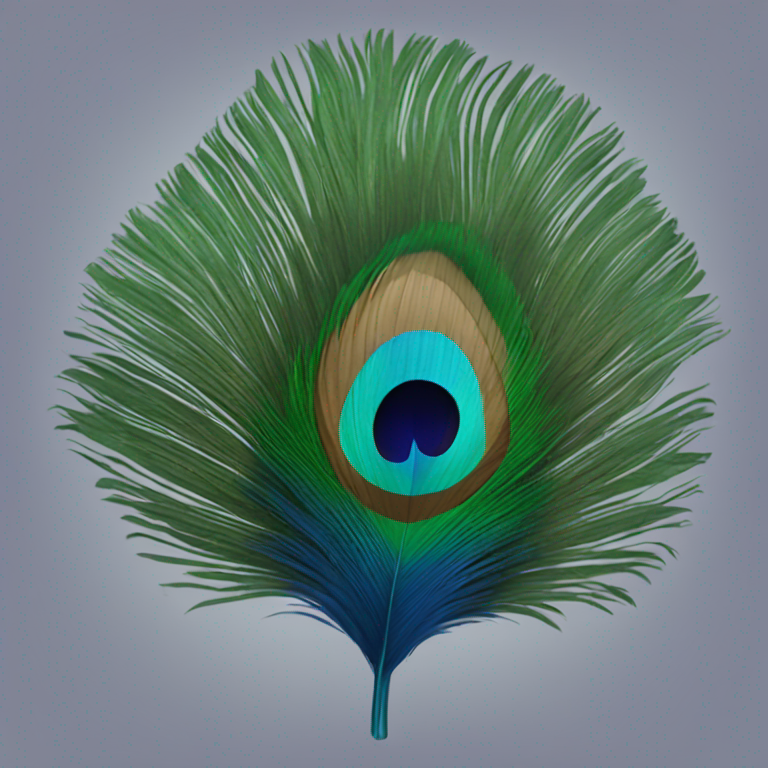
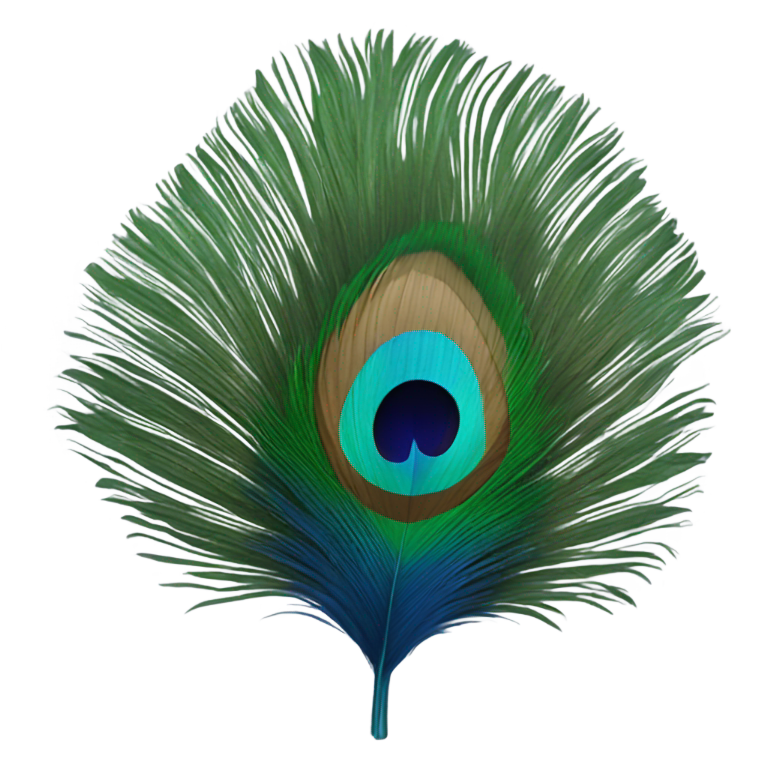
Transparent asset ready for layouts and ads.
Use the background remover when a product, portrait, apparel item, icon, screenshot, or object needs to sit on a cleaner canvas. Upload a clear JPG, PNG, or WebP image, choose transparent, white, green screen, or blur, then check the preview before you download.
A useful AI background remover result keeps the subject recognizable, protects important edges, and gives you a file you can place into a listing, thumbnail, ad, banner, or generated scene without heavy cleanup. Each successful result uses 1 credit; if the first version is not clean enough, regenerate and compare it with the previous output.
Images work best when the main object is visible, sharp, and not hidden behind hands, props, or heavy shadows. For ecommerce and catalog images, use the highest-resolution source you have.
Look at hair, sleeves, glass, packaging corners, shoes, and small product details before downloading. Those areas decide whether the cutout feels ready for a store page or campaign layout.
Try another run when the background is busy, the subject blends into the scene, or you want to compare transparent, white, green screen, and blur outputs. The previous result stays visible while you decide.
How it works
Add a JPG, PNG, or WebP image under 10 MB. Product photos, portraits, apparel, packaged goods, and clean object shots are the easiest starting points.
Pick transparent for design work, white for listings, green screen for video editing, or blur when you want a softer preview without a hard cutout look.
The preview appears in the result panel. Nano Banana Pro charges 1 credit only after a successful image is ready, so failed attempts do not hide the cost from you.
Download the cutout, add it to a marketplace listing, place it into a thumbnail, or bring it back into Nano Banana Pro to create a new product scene or ad visual.
Quality tips
A background remover works best when the source image gives it a clear subject. These small choices help reduce retries and keep the result easier to reuse.
Avoid tiny screenshots, dark photos, heavy motion blur, and images where the subject is cropped too tightly. A little space around the object helps the cutout feel natural.
Transparent PNG is best for design tools, white background is practical for shops, green screen helps video editors, and blur is useful for quick social previews.
If you regenerate, compare the new version with the old one before downloading. Sometimes the first result has cleaner hair, fabric, or product corners.
Use PNG or WebP when you need transparency. Use JPG only when you choose a solid or blurred background and want a smaller file for publishing.
Use cases
background removal is a small step that cleans up a lot of downstream image work: ecommerce listings, profile assets, thumbnails, campaign visuals, and AI image edits. For teams that publish often, this repeatable cutout workflow keeps visual production moving.
Create consistent catalog images for Shopify, Amazon, Etsy, and landing page product grids.
Separate people, pets, and creator photos from busy scenes for avatars and social thumbnails.
Lift garments, accessories, and product details onto transparent or white backgrounds.
Prepare cutouts for posters, ads, thumbnails, banners, and AI image editing workflows.
Use the transparent result directly, or bring it back into Nano Banana Pro image generation for product scenes, ad layouts, thumbnails, and brand visuals. The background remover step is brief, but it often decides whether the next design layer feels clean enough to publish.
FAQ
An AI background remover detects the main subject in a photo and separates it from the background, creating a transparent or replacement-background image. In Nano Banana Pro, the background remover workflow turns that step into a repeatable production action.
Nano Banana Pro charges 1 credit only after the background remover returns a successful image result.
The tool accepts JPG, PNG, and WebP uploads up to 10 MB, and can export PNG, JPG, or WebP results.
Yes. The background remover is designed for product cutouts, marketplace images, catalog assets, profile photos, and creative layouts, especially when you need a background remover workflow that can be repeated across many assets.
Yes. Choose the transparent result mode and export as PNG or WebP to keep alpha transparency.